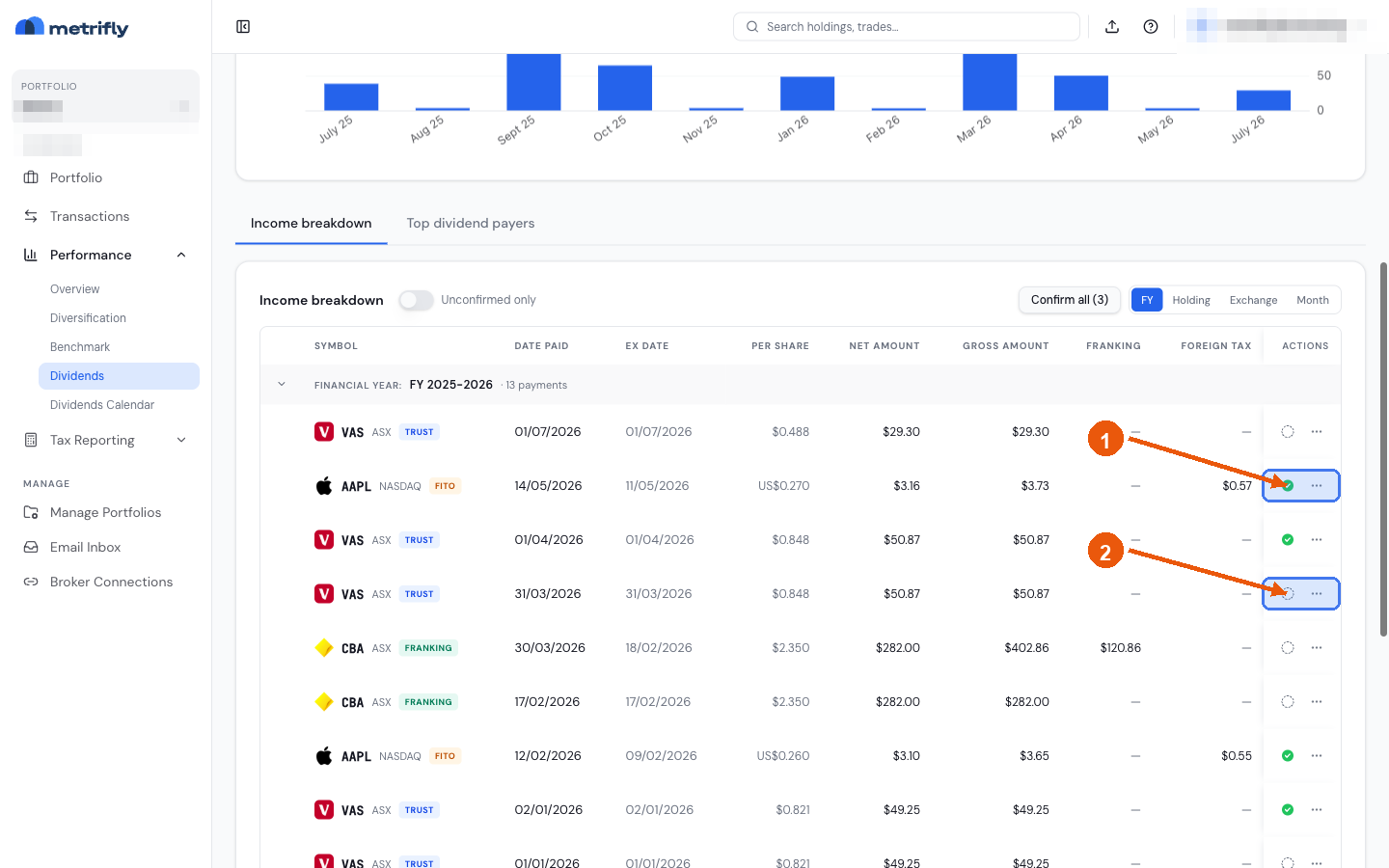
Confirm your dividends
Metrifly creates unconfirmed dividend events, then waits for your review. Confirmation decides whether each payment stays cash or becomes a linked DRP pair.
Dividend statuses
Section titled “Dividend statuses”| Status | Meaning |
|---|---|
| Announced | Declared, ex-date not reached |
| Unconfirmed | Ready for your review |
| Paid | Confirmed and included in income/tax |
Confirm a single dividend
Section titled “Confirm a single dividend”From a dividend row, click the confirm icon.
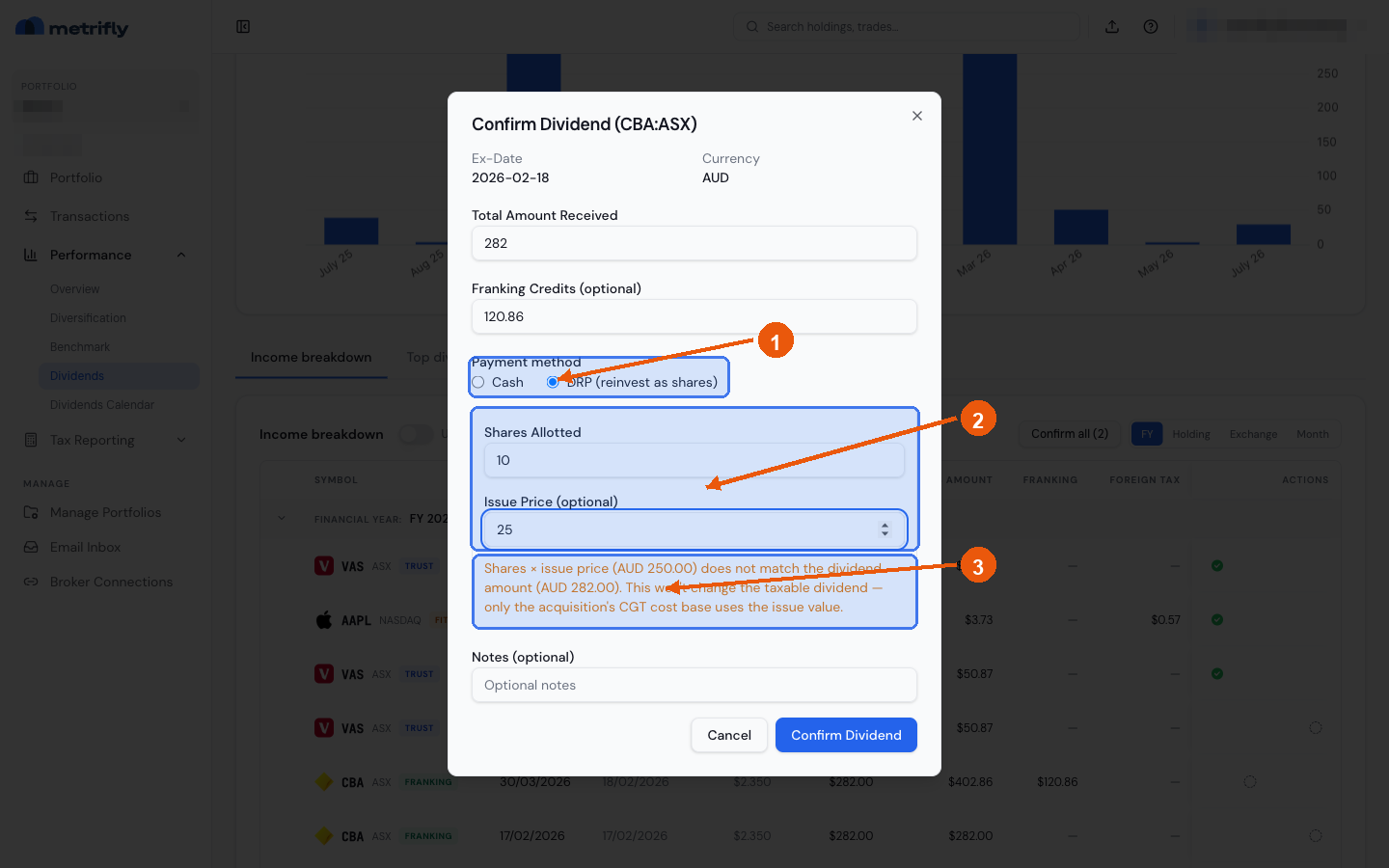
In the Confirm Dividend dialog (titled with the holding, e.g. Confirm Dividend (TICKER:EXCHANGE)) you can:
- update amount and franking credits
- choose Cash or DRP
- enter DRP shares allotted (zero is allowed for residual-carry cases)
- optionally enter issue price and notes
Confirming as DRP creates or updates the linked Dividend Reinvestment row.
Use the automatic DRP review queue
Section titled “Use the automatic DRP review queue”On Performance → Dividends, review Automatic DRP review queue before bulk actions.
Queue items include:
- provisional DRP allocations
- cash-to-DRP conversion opportunities
Use queue actions to:
- confirm DRP
- confirm cash for one payment
- convert an already-confirmed cash dividend to DRP
- suppress future conversion prompts for that dividend
Confirm all at once
Section titled “Confirm all at once”Confirm all is guarded. It confirms only items that are safe to auto-confirm as cash.
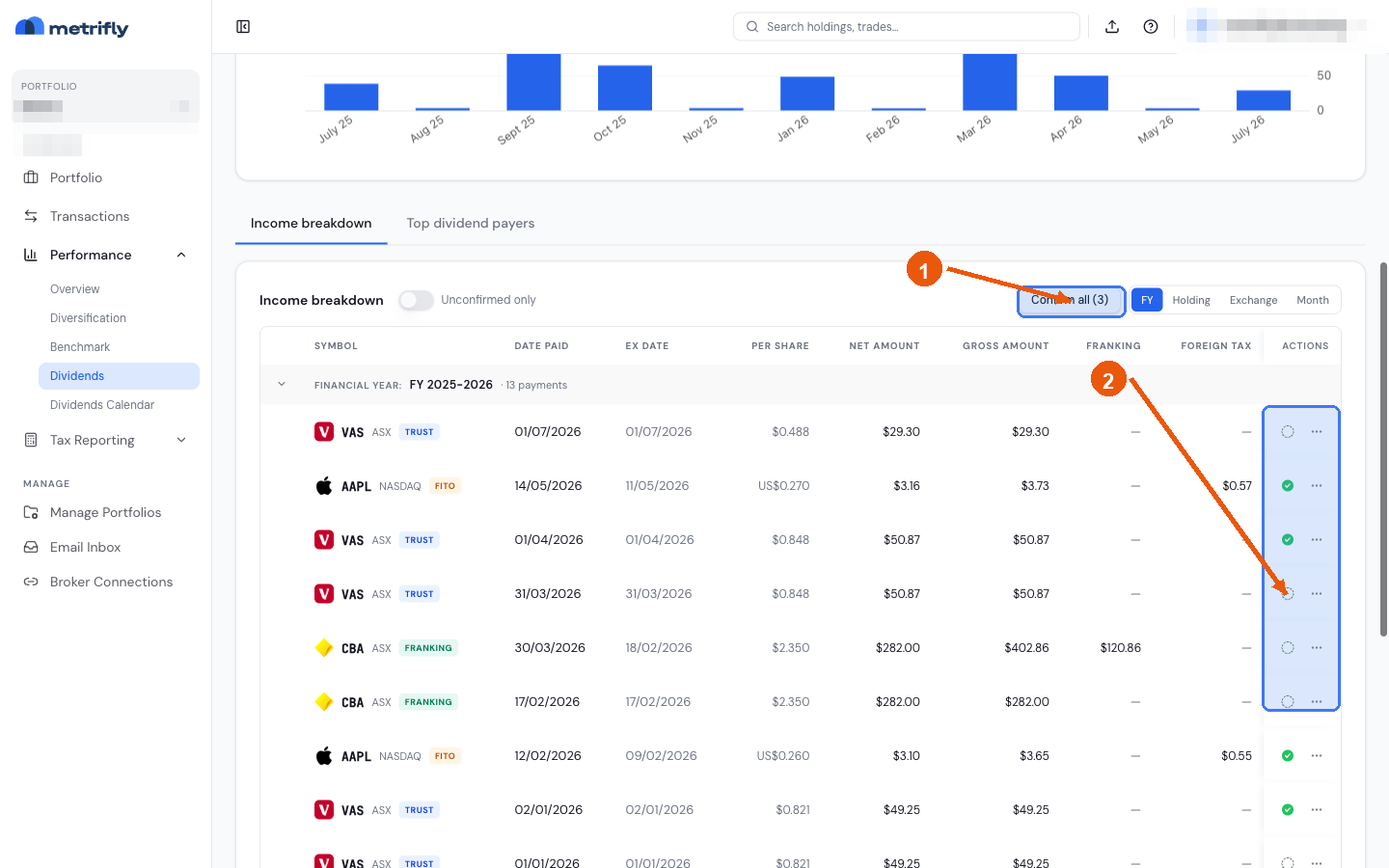
Rows are excluded from bulk confirm when they need DRP review, for example:
- active DRP enrolment periods
- provisional linked reinvestments
- residual dependency chains that require explicit review
Those rows stay in queue or unconfirmed lists for manual confirmation.
Edit, reopen, or delete
Section titled “Edit, reopen, or delete”- Edit unconfirmed: adjust amount, franking, notes before confirmation.
- Reopen confirmed: toggle confirmed rows back to unconfirmed. You cannot reopen a confirmed DRP when a later sale, confirmed DRP, or residual adjustment depends on its linked reinvestment.
- Delete dividend: removes the dividend lifecycle pair. The same dependency guard applies to a confirmed DRP, so correct later dependent DRPs or residual adjustments first.