

Create and manage portfolios
A portfolio is the top-level container for your investments — each one holds its own trades, holdings, performance, benchmarks, and tax reports. This shows you how to create a new portfolio, choose the right currency, switch between them, and delete one. By the end, you’ll have the portfolios you need set up the way you want.
You might keep separate portfolios for different brokers, strategies, family members, or tax entities.
Create a portfolio
Section titled “Create a portfolio”- Open Manage Portfolios from the MANAGE section of the sidebar.
- Click New portfolio in the top right.
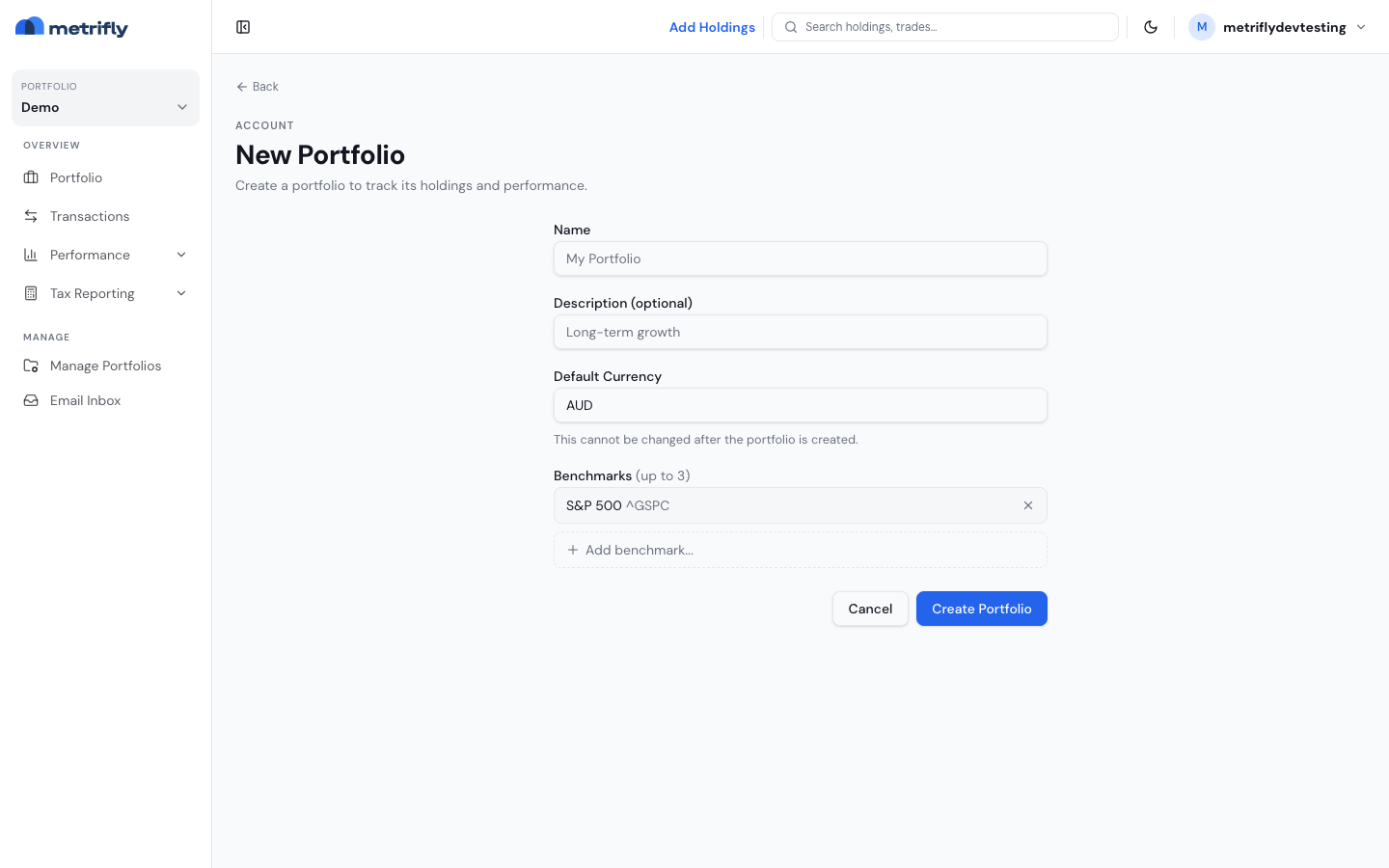
- Fill in the form:
| Field | Required | What it’s for |
|---|---|---|
| Name | Yes | A descriptive name, e.g. “Australian Shares” |
| Description | No | Short notes about the portfolio’s purpose |
| Tax Entity | Yes | Individual, Company, Trust, or SMSF — the entity type used for tax reports. You can change it later in portfolio settings. |
| Default Currency | Yes | Your reporting currency, as a 3-letter code (e.g. AUD) |
| Benchmarks | No | Up to 3 benchmarks to compare against (pre-filled with the S&P 500 ETF, SPY) |
- Click Create Portfolio.
Choosing your reporting currency
Section titled “Choosing your reporting currency”Your reporting currency is the currency everything is shown in. If you hold assets in other currencies, Metrifly converts them at daily exchange rates. An Australian investor should choose AUD — even US shares are then shown in AUD. A US investor should choose USD, and so on.
After you create it
Section titled “After you create it”A new portfolio starts empty. Add holdings from Transactions → Add Holdings:
- Link a broker or exchange directly (Starter plan and above)
- Add a trade manually
- Import your trade history from a file
- Auto-import trades from your broker’s emails (Starter plan and above)
Find and switch between portfolios
Section titled “Find and switch between portfolios”The Manage Portfolios page lists every portfolio under your account. Each card shows its value, 1Y return, and holdings count, an ACTIVE pill on the one currently selected, and a ⋯ menu with Open, Edit, Share, and Delete. Edit takes you to the portfolio’s settings. Your groups are listed at the bottom.
To switch, use the portfolio selector at the top of the sidebar. Selecting a portfolio switches the whole app — dashboard, holdings, performance, transactions, and tax all follow the active selection.
Delete a portfolio
Section titled “Delete a portfolio”You delete portfolios from the Manage Portfolios page, not from settings.
- Open Manage Portfolios.
- On the portfolio’s card, open the ⋯ menu and choose Delete.
- In the Delete portfolio? dialog, type the portfolio’s exact name to enable the Delete button, then click it.
Troubleshooting
Section titled “Troubleshooting”| Problem | Fix |
|---|---|
| You created it with the wrong currency | Currency can’t be changed. Create a new portfolio with the right one and import your trades into it. |
| The new portfolio isn’t in the sidebar selector | Refresh the page. If it’s still missing, open Manage Portfolios to confirm it was created. |
| Create Portfolio does nothing | A name is required and the currency must be a valid 3-letter code. Check for the validation message under each field. |