

Create your Metrifly account
Before you can track anything, you need a Metrifly account. This walks you through signing up, verifying your email, and logging in. By the end, you’ll be in Metrifly and ready to set up your first portfolio.
It takes a couple of minutes, and all you need is an email address you can open right now.
Before you start
Section titled “Before you start”Have these ready:
- An email address you can access — you’ll need it to receive a verification code.
- A password with at least 8 characters, including upper and lowercase letters, a number, and a special character.
Sign up
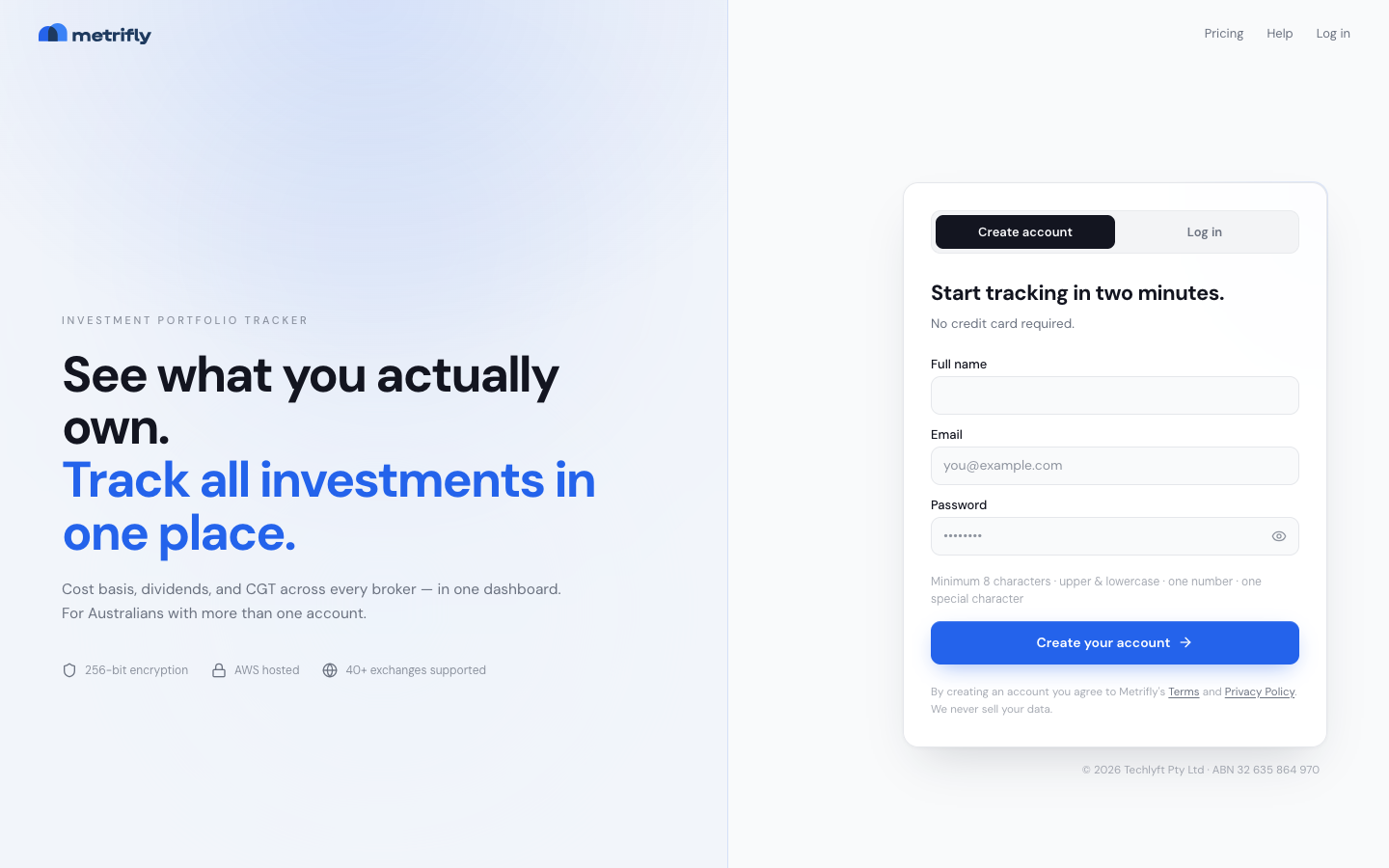
Section titled “Sign up”- Go to the Metrifly sign-up page.
- Enter your Full name — this is how Metrifly addresses you in the app and in emails.
- Enter the Email address you want to log in with.
- Enter a Password that meets the requirements shown under the field.
- Click Create your account. Metrifly sends a 6-digit code to your email and takes you to the verification screen.
Prefer not to create a password? You can also sign up with Google or Apple from the same page.
Verify your email
Section titled “Verify your email”Your email address is already filled in on the Verify email screen — you just need the code.
- Open your inbox and find the message from Metrifly. If it’s not there within a couple of minutes, check your spam or junk folder.
- Copy the 6-digit verification code from the email.
- Enter it in the Verification code field.
- Click Verify. Metrifly confirms your email and takes you to the login screen.
Log in
Section titled “Log in”- Enter your Email and Password.
- Click Log in.
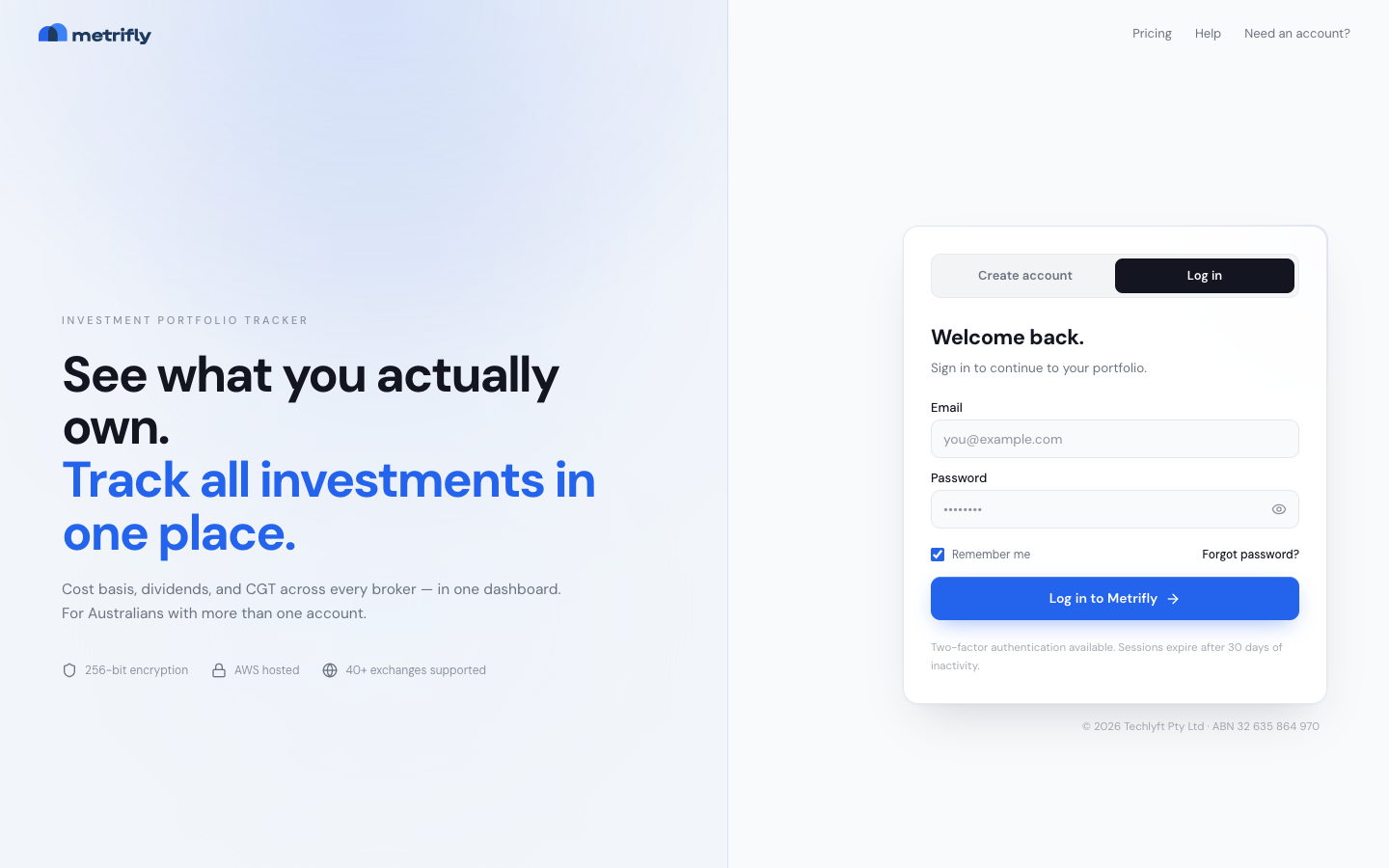
The first time you log in, Metrifly takes you straight into the onboarding wizard, which creates your first portfolio. Carry on with Set up your first portfolio.
Forgot your password?
Section titled “Forgot your password?”If you can’t log in, reset your password:
- On the Log in screen, click Forgot password?.
- Enter the email address you signed up with, then click Send reset code.
- Check your inbox for the reset code.
- Enter the Reset code, a New password, and the same password again under Confirm password.
- Click Reset password, then log in with your new password.
Troubleshooting
Section titled “Troubleshooting”| Problem | Fix |
|---|---|
| The verification email never arrived | Check your spam or junk folder and wait 2–3 minutes. Make sure you typed your email correctly when signing up. |
| “Verification code is invalid” | Use the most recent code in your inbox — codes expire. If it’s expired, request a new one or contact support. |
| “Incorrect email or password” when logging in | Metrifly shows one message for both a wrong password and an unknown email. Double-check both, or use Forgot password?. |
| Your password is rejected | It must be at least 8 characters with upper and lowercase letters, a number, and a special character. |
| “An account with this email already exists” | You’ve probably signed up before. Try logging in, or use Forgot password? to reset it. |