

Take a quick tour of Metrifly
Now that you’re set up, here’s a quick map of the app so you know where everything lives. This is an orientation, not a task — skim it once and you’ll know where to go.
If you haven’t set up yet, start with Create your Metrifly account and Set up your first portfolio.
The sidebar
Section titled “The sidebar”The sidebar on the left is your main navigation. At the very top is the portfolio selector — use it to switch between portfolios, or to open a group for a combined view across several portfolios. (In group mode, tax is hidden and some performance pages change.)
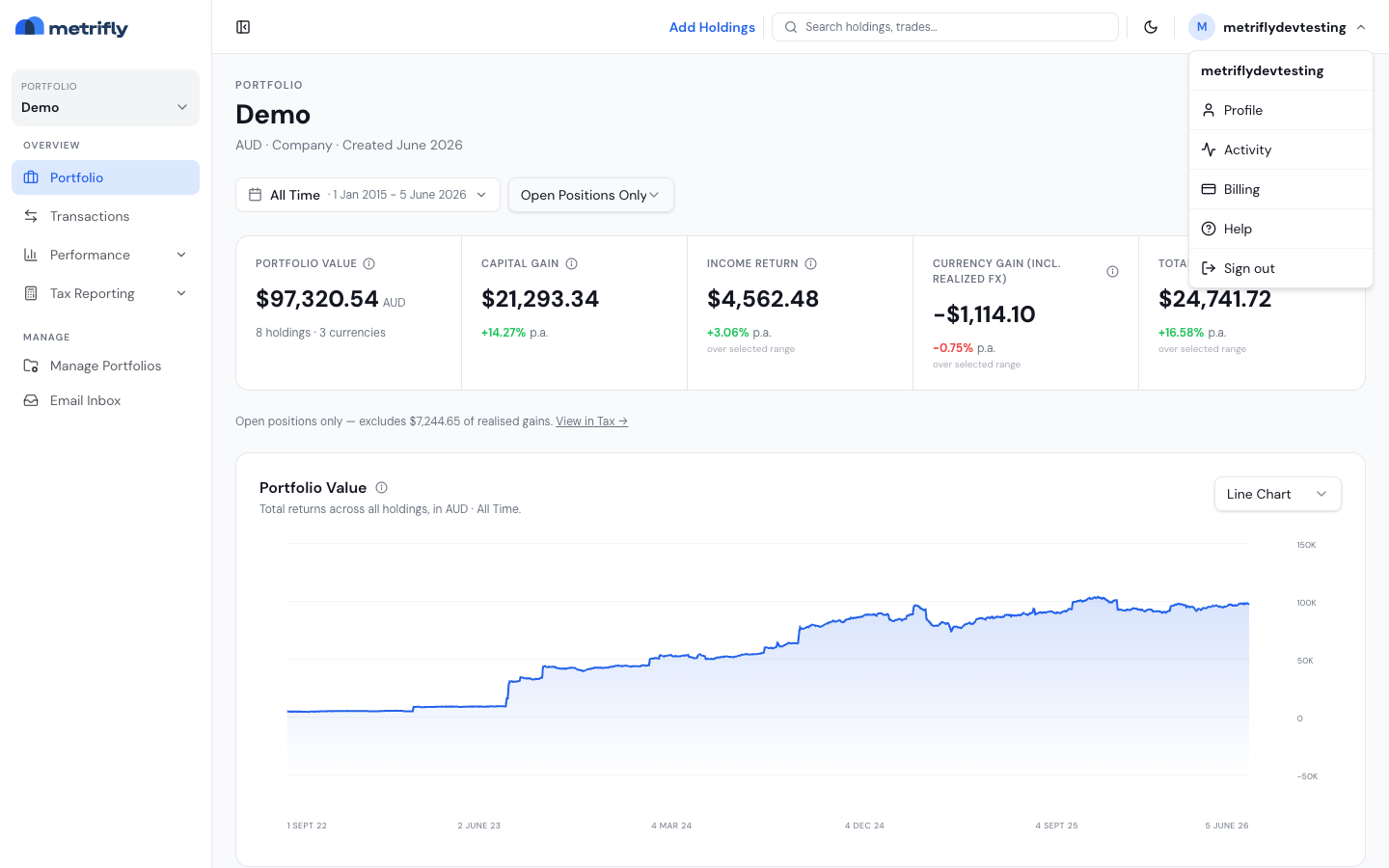
| Item | What it’s for |
|---|---|
| Portfolio / Group | The dashboard for whatever you’ve selected |
| Transactions | Your full trade history — and where you add holdings |
| Performance | Returns, diversification, benchmarks, and dividends |
| Tax Reporting | Australian tax reports (single portfolio, paid plans) |
| Manage Portfolios | Create and organise portfolios and groups |
| Email Inbox | See the contract-note emails you’ve forwarded in |
| Broker Connections | Link brokers and exchanges for automatic trade sync |
Your Profile, Activity, Billing, the dark/light mode switch, and Sign out live in the account menu at the top right, not the sidebar.
The top bar
Section titled “The top bar”- Sidebar toggle — collapse or expand the sidebar.
- Search — press ⌘K to jump to any portfolio, holding, or page.
- Add holdings — the upload icon is a shortcut for adding investments.
- Help — the ? icon opens this help centre.
- Account menu — Profile, Activity, Billing, switch to dark/light mode, and Sign out.
Your dashboard
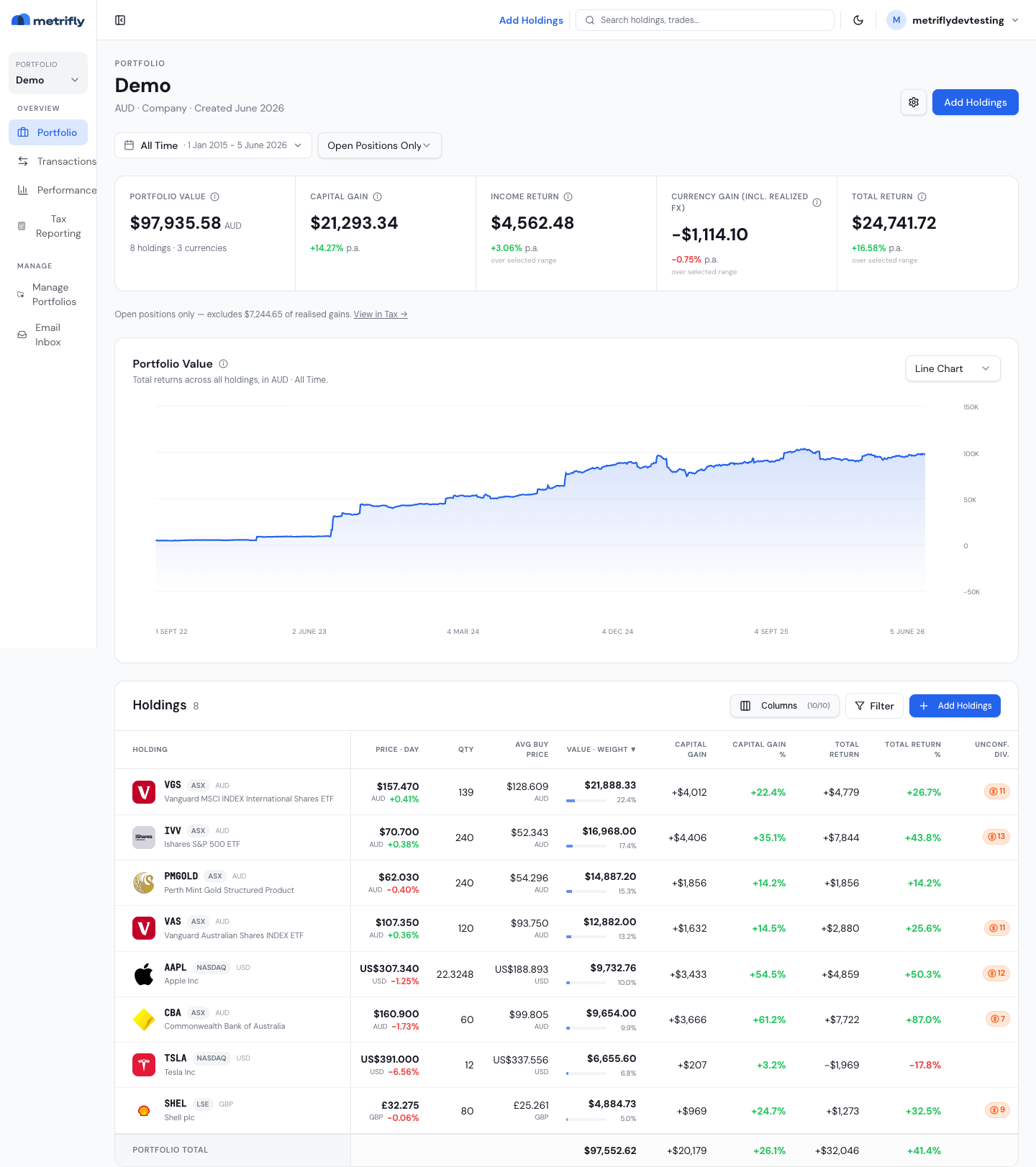
Section titled “Your dashboard”With no holdings yet, your dashboard shows an Add Holdings button instead of charts. Once you’ve added trades, it fills in with:
- Summary cards — value, capital gain, income return, currency gain, and total return.
- Portfolio value chart — how your portfolio has tracked over time.
- Holdings table — every holding, with its value and return.
Adding holdings
Section titled “Adding holdings”There’s no separate “Import” item in the sidebar. To add investments, use either:
- Transactions → Add Holdings, or
- the Add Holdings button on an empty dashboard.
Either opens a hub with options including Add manually, Upload a file, and Email forwarding (paid). See Add & import your investments for the full picture.
Holdings
Section titled “Holdings”A holding is created automatically the first time you record a BUY for a ticker. Open any holding to see its Overview, Trades, Dividends, Notes, and Settings — see Read a holding’s detail page.
Tax Reporting
Section titled “Tax Reporting”Tax Reporting needs a paid plan and a single portfolio selected (not a group). It covers capital gains, taxable income, unrealised gains, and an ATO myTax guide. When you’re ready, start with the tax reporting overview.