

Import your trade history from a file
The fastest way to get your investments into Metrifly is to upload a file from your broker. By the end of this, your full trade history — every buy, sell, and dividend — will be in your portfolio, with prices, holdings, and performance filled in for you.
You can import a CSV or Excel file from almost any broker. Metrifly reads the file, works out which column is which, and shows you exactly what it found before anything is saved — so you always get a chance to review and correct it first.
Before you start
Section titled “Before you start”A couple of things make the import go smoothly:
- Pick a single portfolio, not a group. Import is only available when one portfolio is selected in the portfolio selector. In a group view, the import option is hidden.
- Have your broker file ready. Export your trade history, confirmations, or activity from your broker as a CSV or Excel file. If your broker has a step-by-step export guide, follow that to get the right file.
- Check the file. It must be a
.csv,.xlsx, or.xlsfile, under 10 MB, with no more than 500 importable rows in a single import. Split larger exports into multiple files if you need to. - Keep the page open. Stay on the tab from upload through completion so you do not lose your place or interrupt final processing.
Step 1 — Open Upload a file
Section titled “Step 1 — Open Upload a file”- Select the portfolio you want the trades to go into.
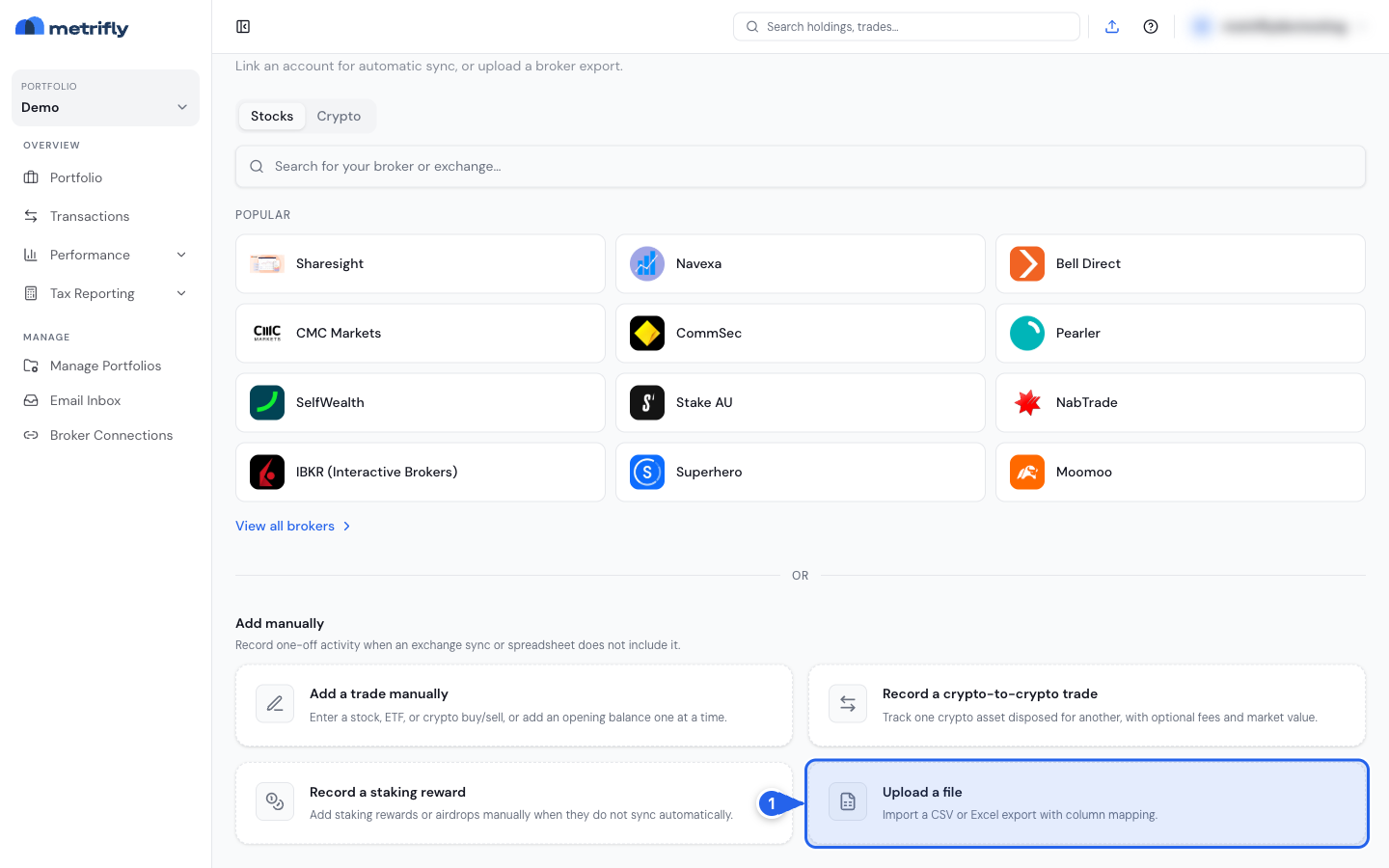
- Go to Transactions → Add Holdings.
- Either:
- Under Add manually, select Upload a file, or
- Open your broker, then select Upload a file (available on every plan, including Free). Direct link and contract-note sync still need Starter or above.
Step 2 — Upload your file
Section titled “Step 2 — Upload your file”- Drag your file onto the drop zone (1), or click Choose File to browse for it (2).
- If you came from a broker page, Metrifly shows that broker and export tips when available. Otherwise it works out the columns for you after upload.
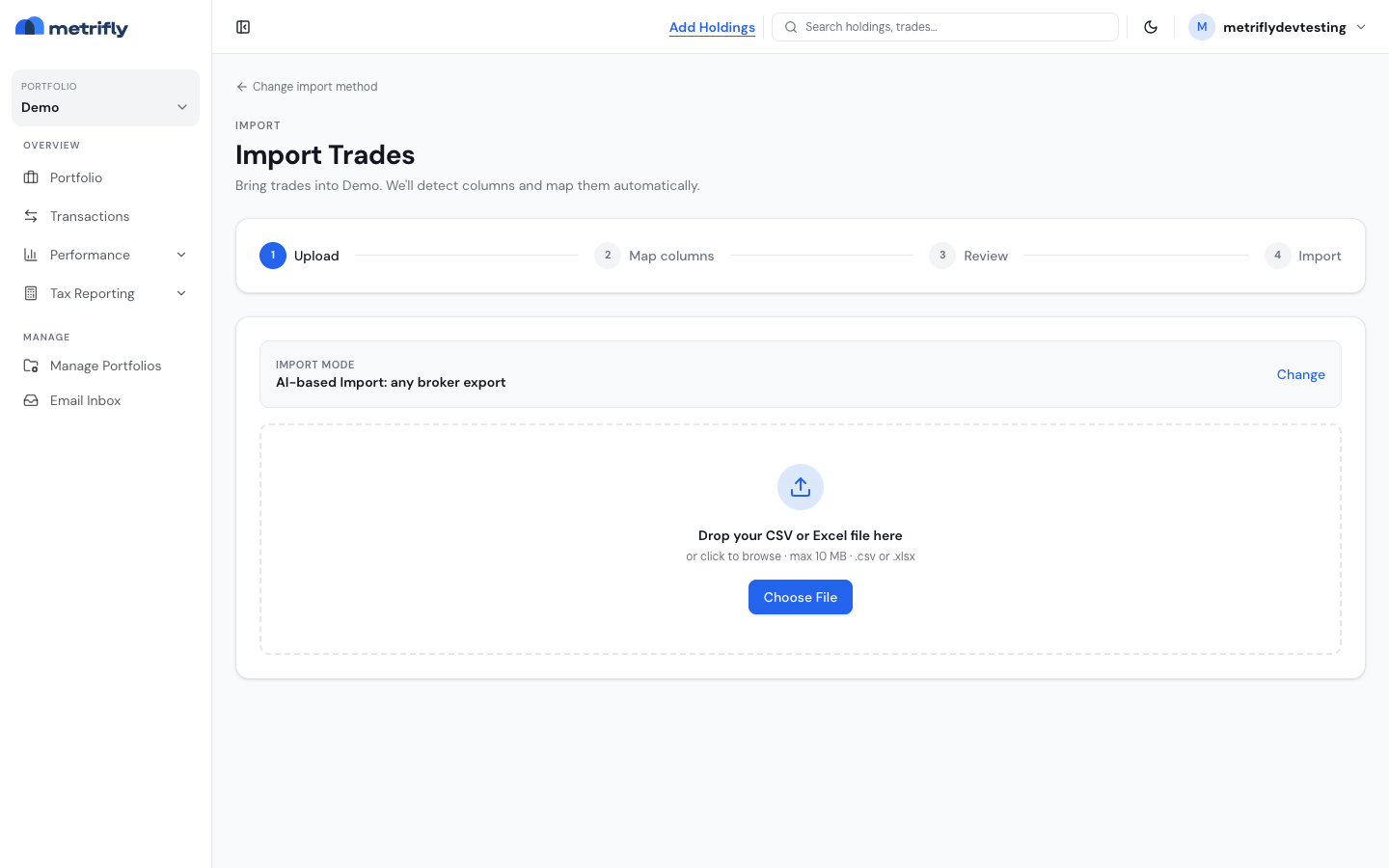
Once the file’s read, you land on Review.
Step 3 — Review what Metrifly found
Section titled “Step 3 — Review what Metrifly found”Review uses three tabs:
| Tab | What it means | What to do |
|---|---|---|
| Rejected | Missing or invalid data in one or more fields | Fix the highlighted fields and select the row, or delete it |
| Accepted | Mapped to a complete, valid transaction | Pre-selected — skim for mistakes |
| Duplicates | Looks like a trade already in this portfolio | Left out by default — select only if it’s a separate trade |
Skipped rows (footers, cash movements, empty sheets) stay under X rows skipped below the table.
You can’t continue to Confirm while Rejected still has rows — fix and select them, or delete them.
Fix a rejected trade inline
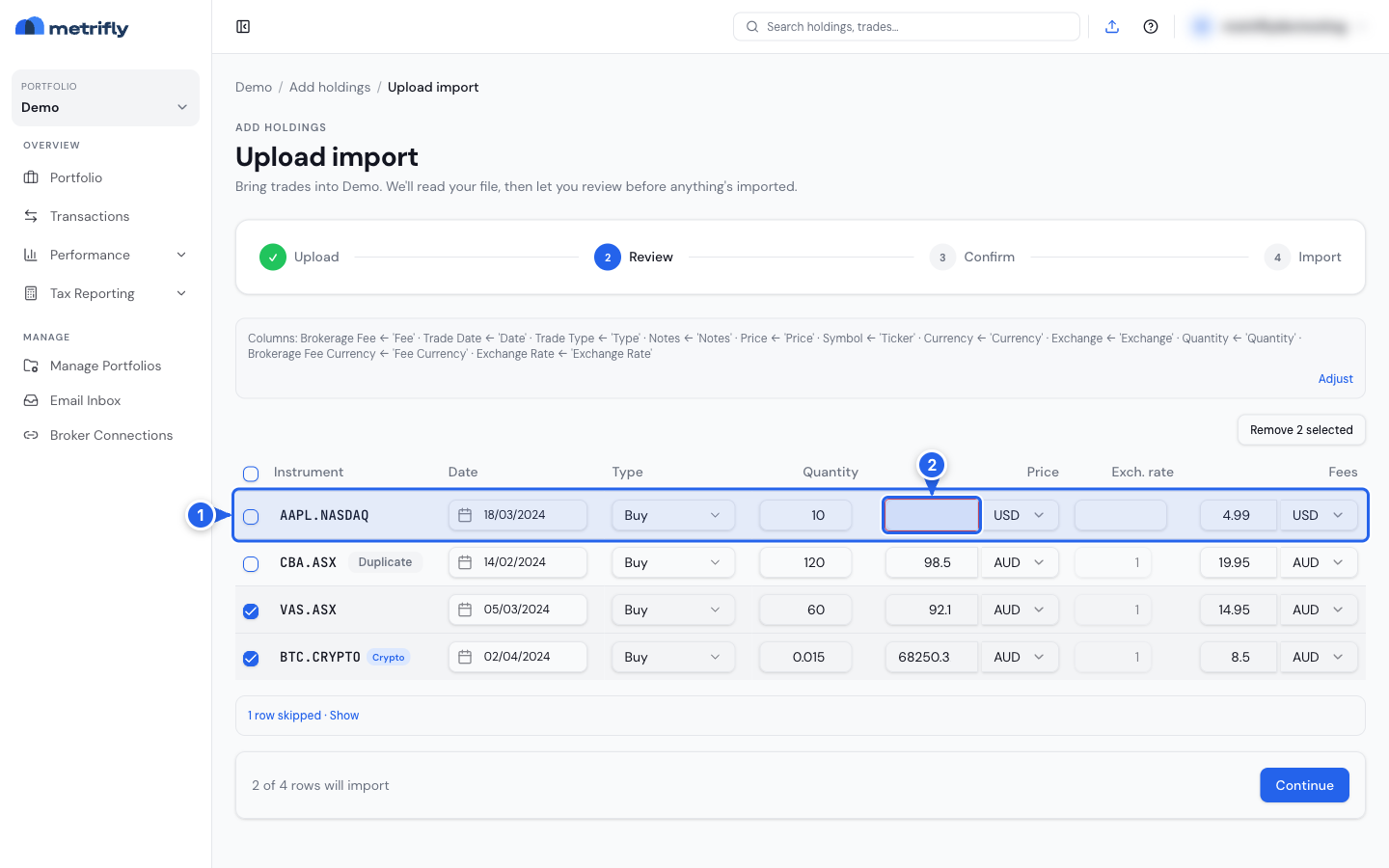
Section titled “Fix a rejected trade inline”A rejected row is outlined so it stands out in the table (1) — hover over a red-outlined field to see why it’s flagged. Correct the problem directly in the table: pick the right instrument, adjust the date, type, quantity, or currency, or fill in a missing price or exchange rate (2). Once the row looks right, tick its checkbox to include it — it moves to Accepted.
Handle likely duplicates
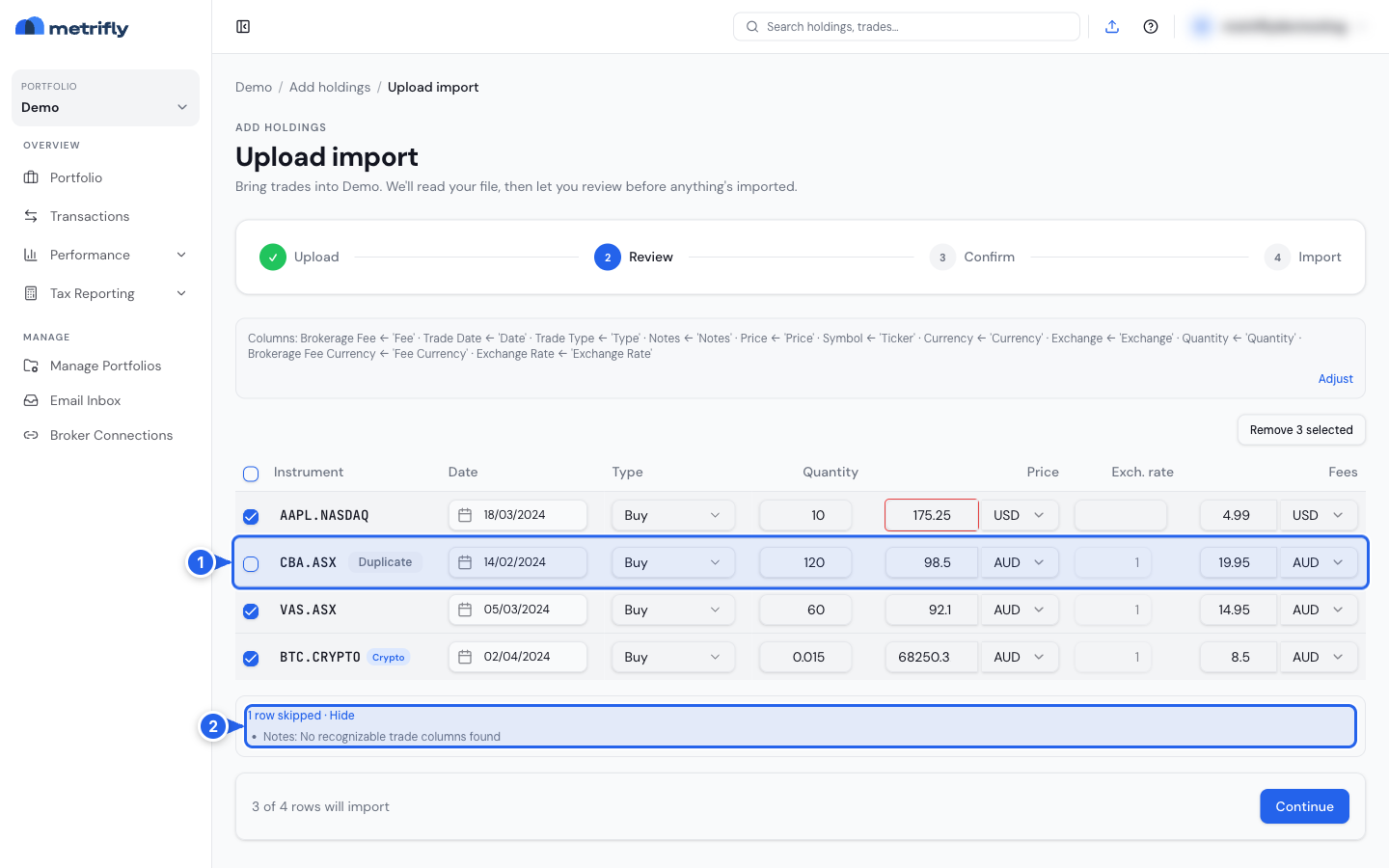
Section titled “Handle likely duplicates”Open the Duplicates tab. If a row looks like a trade you’ve already recorded in this portfolio (same instrument, date, type, quantity, and price), Metrifly leaves its checkbox unticked (1). Only tick it if it’s genuinely a separate trade.
Check skipped rows
Section titled “Check skipped rows”Rows Metrifly didn’t treat as trades — blank rows, footers, cash-only entries, and similar — don’t appear in the tabs. Expand X rows skipped below the table to see each one with its sheet and reason (2). If you removed a row yourself, it’s listed separately under Removed by you, where you can restore it.
Fix column mapping
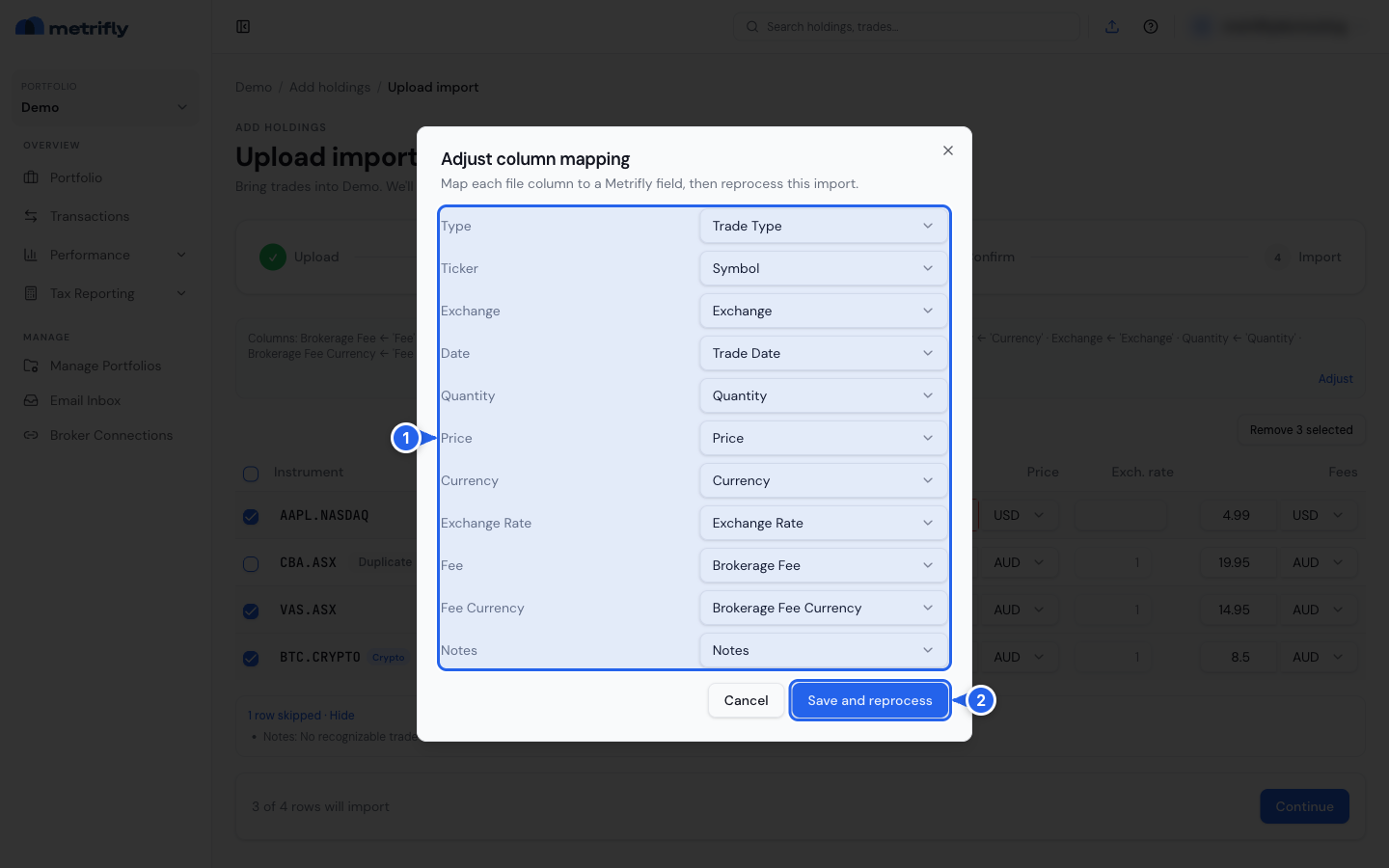
Section titled “Fix column mapping”Above the table, Metrifly shows a summary of how it mapped each column, sheet by sheet. If it flags uncertain mapping, or a lot of rows are Rejected, the mapping is probably wrong rather than the data. Click Adjust mapping to open Adjust column mapping, re-map any column to the right field (1), then click Save and reprocess (2) to re-read the file with the corrected mapping.
When Rejected is empty and you’re happy with the selection, click Continue.
Step 4 — Confirm
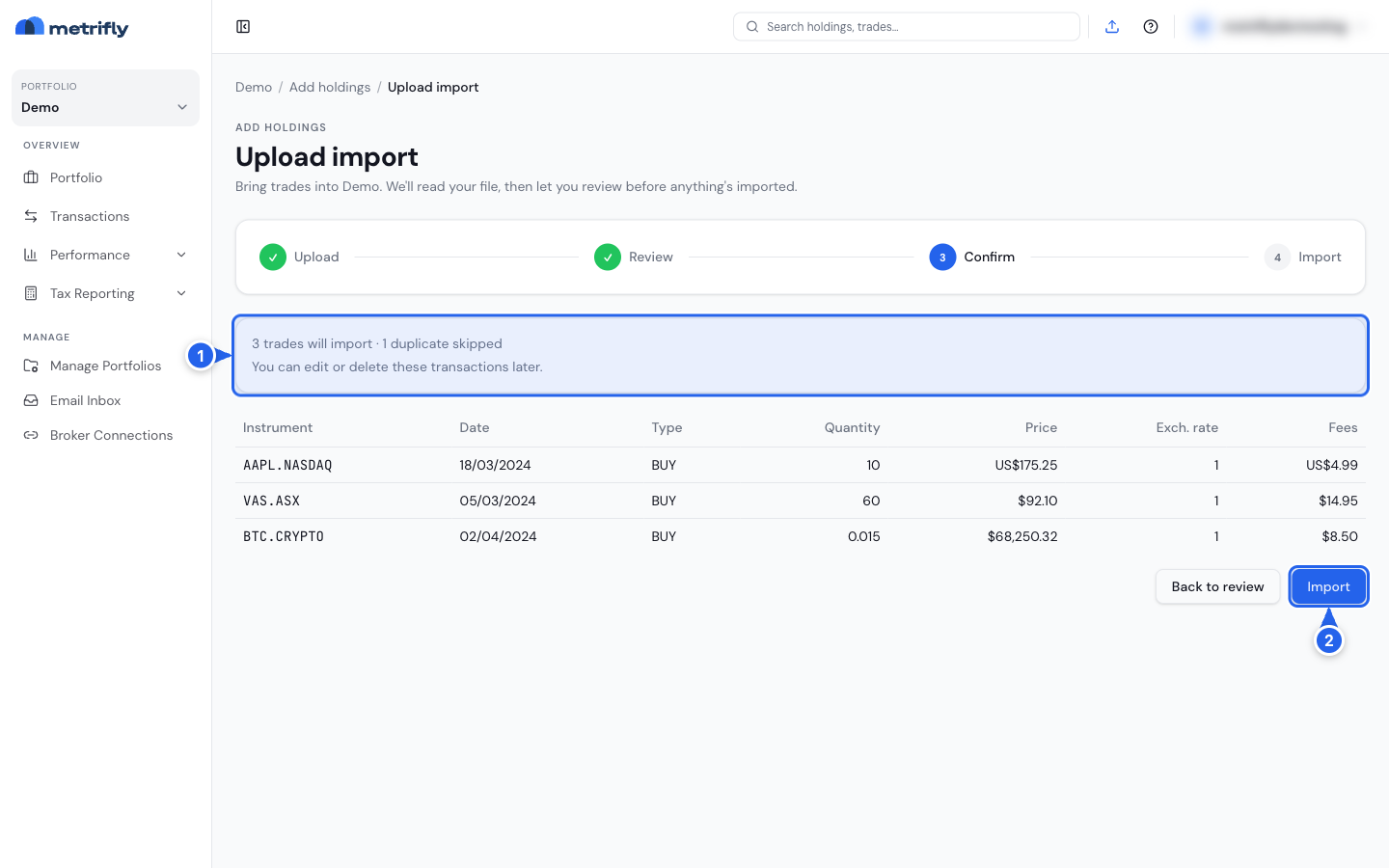
Section titled “Step 4 — Confirm”Confirm shows a summary card of what will happen — how many trades will import and how many duplicates are being skipped (1) — plus a read-only preview of the rows you selected. Check it over, then click Import (2). If you need to change anything, click Back to review.
Step 5 — Done
Section titled “Step 5 — Done”After you click Import, Metrifly saves your trades and then runs a short pipeline to fill everything in: it creates or updates your holdings, fetches prices and exchange rates, applies benchmarks, rebuilds snapshots, and loads dividends. For long date ranges this can take a few minutes.
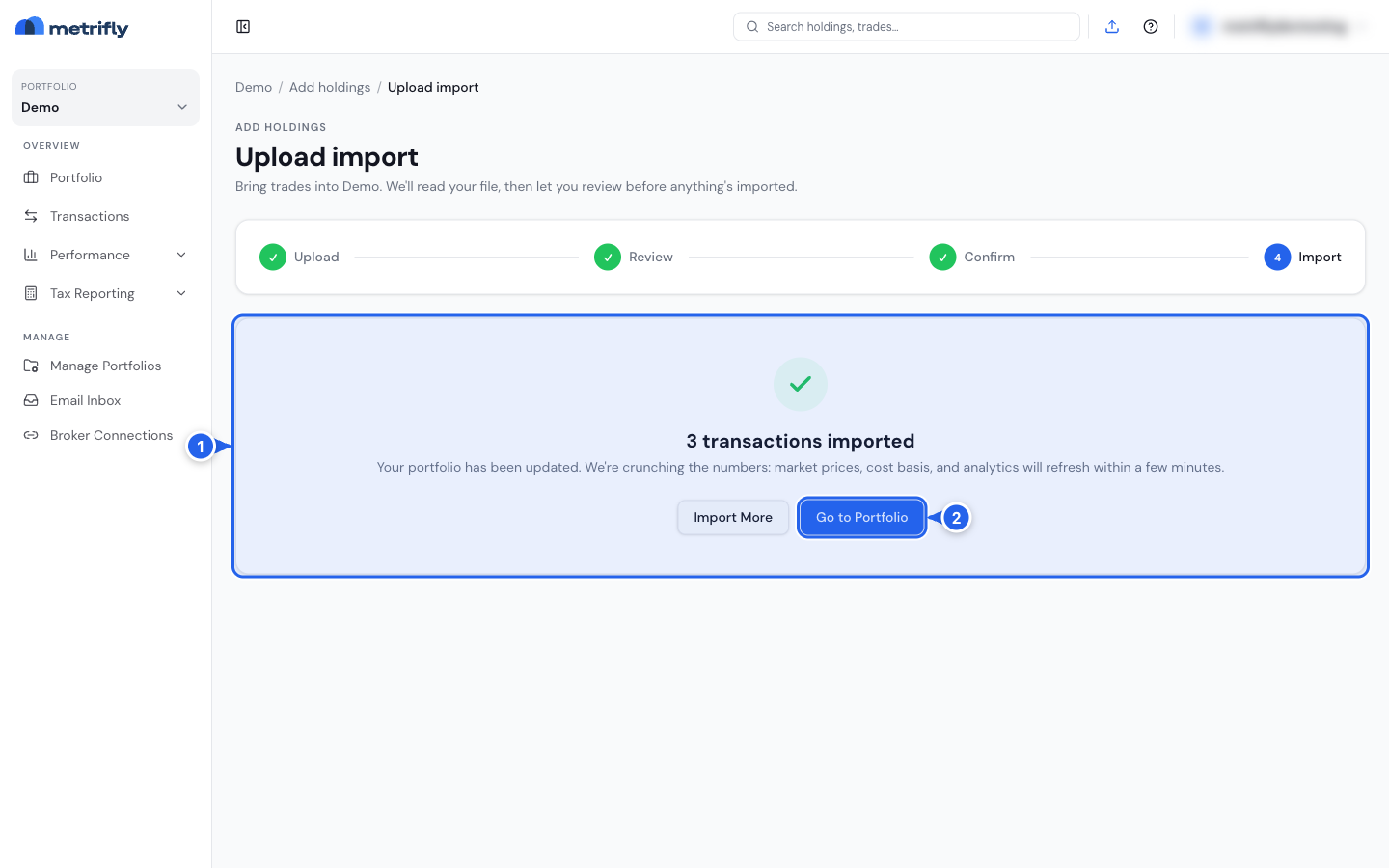
When it’s done, you’ll see a summary card confirming how many transactions were imported (1), with options to Import More or Go to Portfolio (2).
Good to know
Section titled “Good to know”- Multi-sheet Excel files are supported. Metrifly reads every sheet that looks like it contains trades and skips sheets that are empty or don’t look trade-like (with the reason shown in Review). If your workbook has a Combined sheet alongside individual market sheets, Metrifly imports only the Combined sheet and skips the others as superseded, since they’d otherwise duplicate the same trades.
- A “Check symbol” pill on a holding means Metrifly couldn’t match that ticker to a priceable symbol — often because a broker export uses an internal scrip code. Fix the ticker, or re-import with the ISIN column mapped.
- Individual enrichment steps can fail without failing the whole import. Your trades still save even if a later step, like dividends, doesn’t finish.
- Your broker isn’t in the list? That’s fine — any broker that exports a CSV or Excel file works. See Find your broker’s export guide.
Troubleshooting
Section titled “Troubleshooting”| Problem | Fix |
|---|---|
| The import option isn’t there | You have a portfolio group selected. Switch to a single portfolio. |
| Your file is rejected | Use a .csv, .xlsx, or .xls file under 10 MB. |
| “Exceeds the 500-row limit” error | A single import can bring in at most 500 importable rows. Split your file into smaller ones and import them one at a time. |
| Rows from your Excel file are missing | Check the skipped-rows summary in Review — Metrifly skips sheets it doesn’t recognise as trade data, and skips individual market sheets when a Combined sheet is present. |
| Lots of rows show as needing attention | The column mapping is probably off. Open Adjust column mapping, re-map the columns, and Save and reprocess. |
| “This looks like a full account statement” | This statement layout cannot be imported yet. Choose Send this file for format support to share a sample with Metrifly, or choose Try another file and upload a trade export instead. |
| A holding shows Check symbol after import | Verify the ticker and exchange, or re-import with an ISIN column mapped. |
| A holding’s exchange shows OTHER with the wrong currency | It was imported before Metrifly supported that market. Delete the holding, then re-import the file — re-importing without deleting first is skipped as a duplicate. |
| Some trades look like duplicates | Rows flagged Duplicate are possible repeats of trades already in this portfolio — only select the ones that are genuinely separate trades. |
| A banner on your portfolio says the last import failed or is still catching up | If it says the import failed, try again, or contact support if it keeps happening. If it says data is still catching up, your trades were saved — prices and analytics finish updating on their own shortly, with no action needed from you. |
Related articles
Section titled “Related articles”- Find your broker’s export guide — export steps for 40+ brokers
- Add a trade manually — for one-off trades
- Auto-import trades from your broker’s emails — Starter and above
- Edit, fix, or delete a transaction