

Link a broker or exchange directly
For supported brokers and exchanges, you can link your account so Metrifly imports your trade history and syncs new trades automatically. Connections are read-only — Metrifly cannot place, modify, or cancel trades on your behalf.
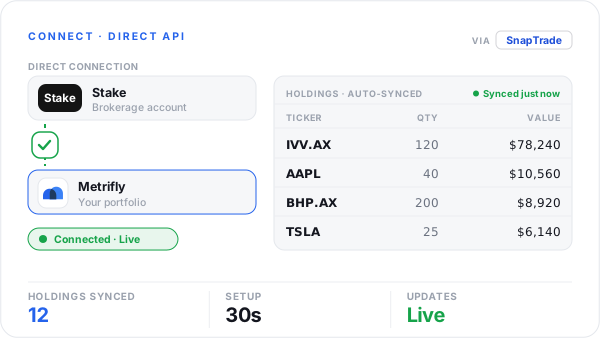
A read-only connection authorises once — then your holdings sync automatically and stay live.
Which brokers support direct link?
Section titled “Which brokers support direct link?”Not every broker in the catalog supports direct linking yet. When you open a broker in Add holdings, look for Direct account link on that broker’s page.
How you connect depends on the provider:
- SnapTrade — sign in with your broker through SnapTrade’s portal (for example, Stake AUS or Trading 212). Metrifly does not see or store your broker password.
- Read-only API key — paste a read-only key from your exchange or broker (for example, Swyftx or Coinbase). Metrifly stores the key encrypted and uses it only to import trades.
For crypto exchanges, see Sync a crypto exchange with an API key for the full API-key setup flow.
If direct link isn’t available, use file import, email forwarding, or manual entry instead.
Before you start
Section titled “Before you start”- Pick the portfolio trades should flow into. You map each linked brokerage account to a portfolio on the Broker Connections page.
- For API-key brokers, create a read-only key at your exchange first. Do not enable trading or withdrawal permissions.
Step 1 — Start the connection from Add holdings
Section titled “Step 1 — Start the connection from Add holdings”- Open Transactions → Add Holdings for the portfolio you want to link.
- Search for your broker or exchange and open its page.
- Choose Direct account link.
- Follow the prompts:
- SnapTrade: click Connect with SnapTrade, sign in with your broker in the popup, and authorise read-only access. When the connection succeeds you’re returned to Broker Connections.
- API key: enter your read-only API key (and secret, if required), then click Connect broker. On success you’re returned to the broker’s page and your trade history starts importing.
Step 2 — Map accounts to portfolios
Section titled “Step 2 — Map accounts to portfolios”Each linked brokerage account must be mapped to exactly one portfolio:
- Open Broker Connections from the Manage section of the sidebar.
- Under each connection, use the Map to portfolio dropdown for every account.
- Wait for the initial import to finish — the row shows Importing trade history… while the first sync runs.
New trades sync automatically on a daily schedule. Use Sync now on Broker Connections or the broker’s Add holdings page to pull trades sooner.
Good to know
Section titled “Good to know”- One connection, multiple accounts. Some brokers return several accounts (for example, cash and margin). Map each account to the right portfolio.
- Reconnect if broken. If a connection shows Needs attention, open Broker Connections and choose Reconnect (SnapTrade) or update your API key.
- Disconnect anytime. Disconnecting stops future syncs. Trades already imported stay in your portfolio.
- Connection limits. Starter allows up to 3 linked brokers, Standard up to 10, and Pro unlimited. See Compare plans and pricing.
Troubleshooting
Section titled “Troubleshooting”| Problem | Fix |
|---|---|
| You see an upgrade prompt | Direct connections require a paid plan. Upgrade to link a broker. |
| Direct account link isn’t shown | That broker isn’t supported for direct link yet. Use file import or email forwarding. |
| Trades aren’t appearing | Check the account is mapped to the right portfolio on Broker Connections. Run Sync now and allow time for the first import. |
| Connection shows Needs attention | Reconnect through SnapTrade or replace an expired API key. |
| You’ve hit the connection limit | Disconnect a broker you no longer use, or upgrade your plan. |