

Add notes to a holding
Notes let you attach your own observations and reminders to a holding — your thesis, research, anything worth remembering. They’re visible only to you. By the end of this, you’ll know how to add, edit, and delete them.
Add a note
Section titled “Add a note”- Open the holding’s detail page by clicking its row on your dashboard.
- Select the Notes tab.
- Click the dashed Add a note button to reveal the note editor.
- Type your note in the field (“What’s on your mind about this holding?”).
- Click Save Note (or press ⌘/Ctrl + Enter). Pressing Enter on its own adds a new line — it doesn’t save.
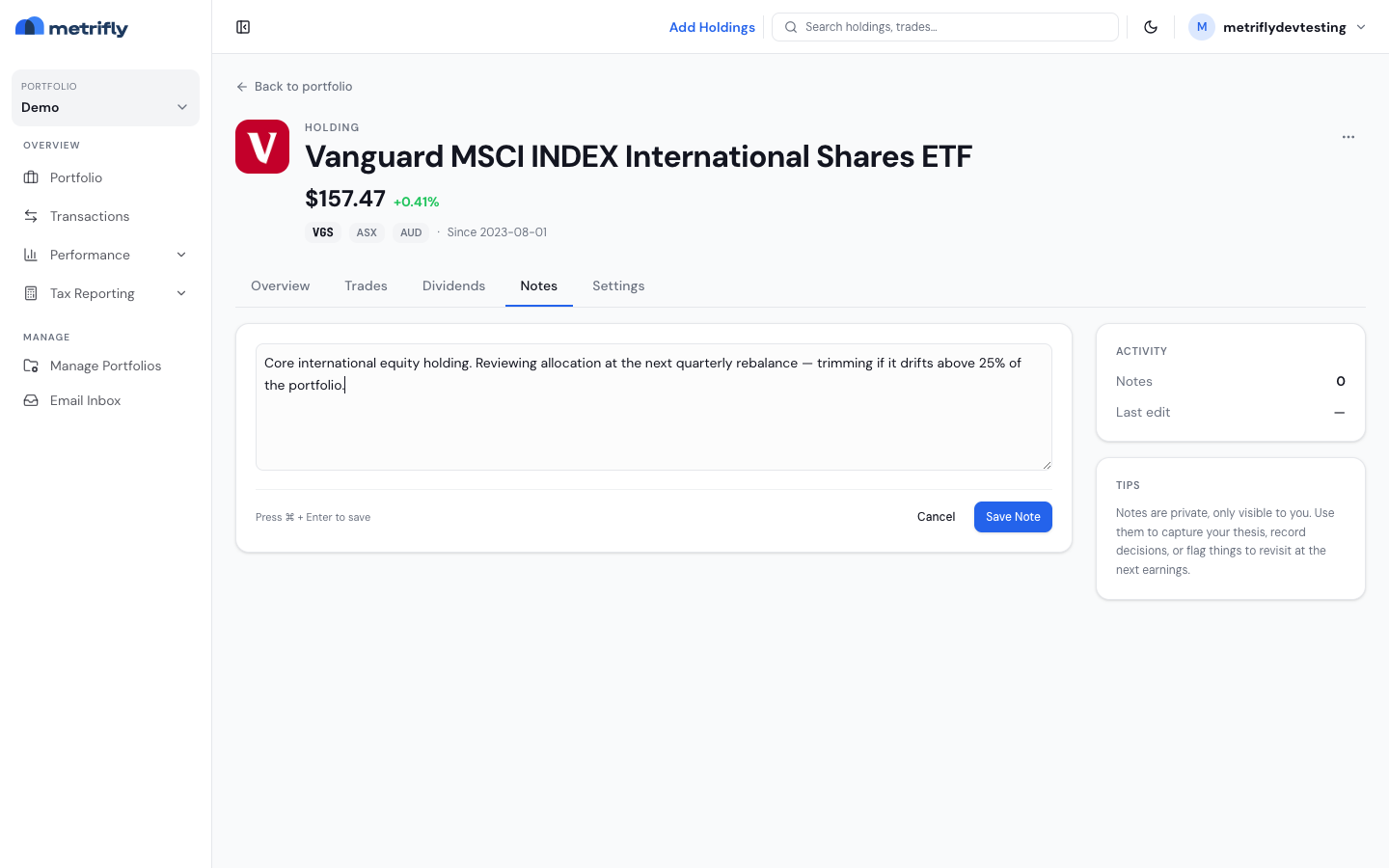
The Save Note button stays disabled until you’ve entered some text.
View your notes
Section titled “View your notes”Each note shows as a card with the note text, its date, and how long ago it was last updated. Hover over a card to reveal its Edit and Delete icon buttons. Before you’ve added any, the tab shows No notes yet. Add a note to capture your investment thesis or any observations about this holding. The tab also shows an Activity and Tips sidebar alongside your notes.
Edit a note
Section titled “Edit a note”- Find the note on the Notes tab and hover over it.
- Click the Edit (pencil) icon.
- Change the text inline.
- Click Save (or press ⌘/Ctrl + Enter). To discard, click Cancel or press Esc.
Delete a note
Section titled “Delete a note”- Find the note you want to remove and hover over it.
- Click the Delete (trash) icon.
Troubleshooting
Section titled “Troubleshooting”| Problem | Fix |
|---|---|
| The Save Note button is greyed out | The field is empty — enter some text to enable it. |
| Pressing Enter doesn’t save | Enter adds a new line. Press ⌘/Ctrl + Enter or click Save Note to save. |
| A note’s timestamp changed | The timestamp shows the last-updated time; it updates each time you edit. |
| You deleted a note by mistake | Deletion is permanent — you’ll need to re-create it. |
| Your edit didn’t save | Click Save (or press ⌘/Ctrl + Enter) to apply; Cancel or Esc discards it. |