

Classify holdings with custom groups
Custom Groups let you classify holdings in one portfolio with categories you choose, such as investment strategy, risk level, or goal. They do not change your holdings, transactions, prices, or tax calculations — they give you another way to organise and analyse them.
Before you start
Section titled “Before you start”- Select a single portfolio. Custom Groups are not available when you are viewing a portfolio group.
- You need permission to edit that portfolio.
- Your plan sets how many custom groups you can create in each portfolio.
| Plan | Custom groups per portfolio |
|---|---|
| Free | 1 |
| Starter | 3 |
| Standard | 5 |
| Pro | 10 |
Create a custom group
Section titled “Create a custom group”- Select the portfolio, then open Manage → Custom Groups.
- Enter a name in New group name.
- Select Create group.
- Rename the first category if needed, then select Add category to create the categories you want.
Use the group selector (1) to choose the group you want to edit. Manage category names and additions in the category controls (2), then assign categories in the table and select Save changes (3).
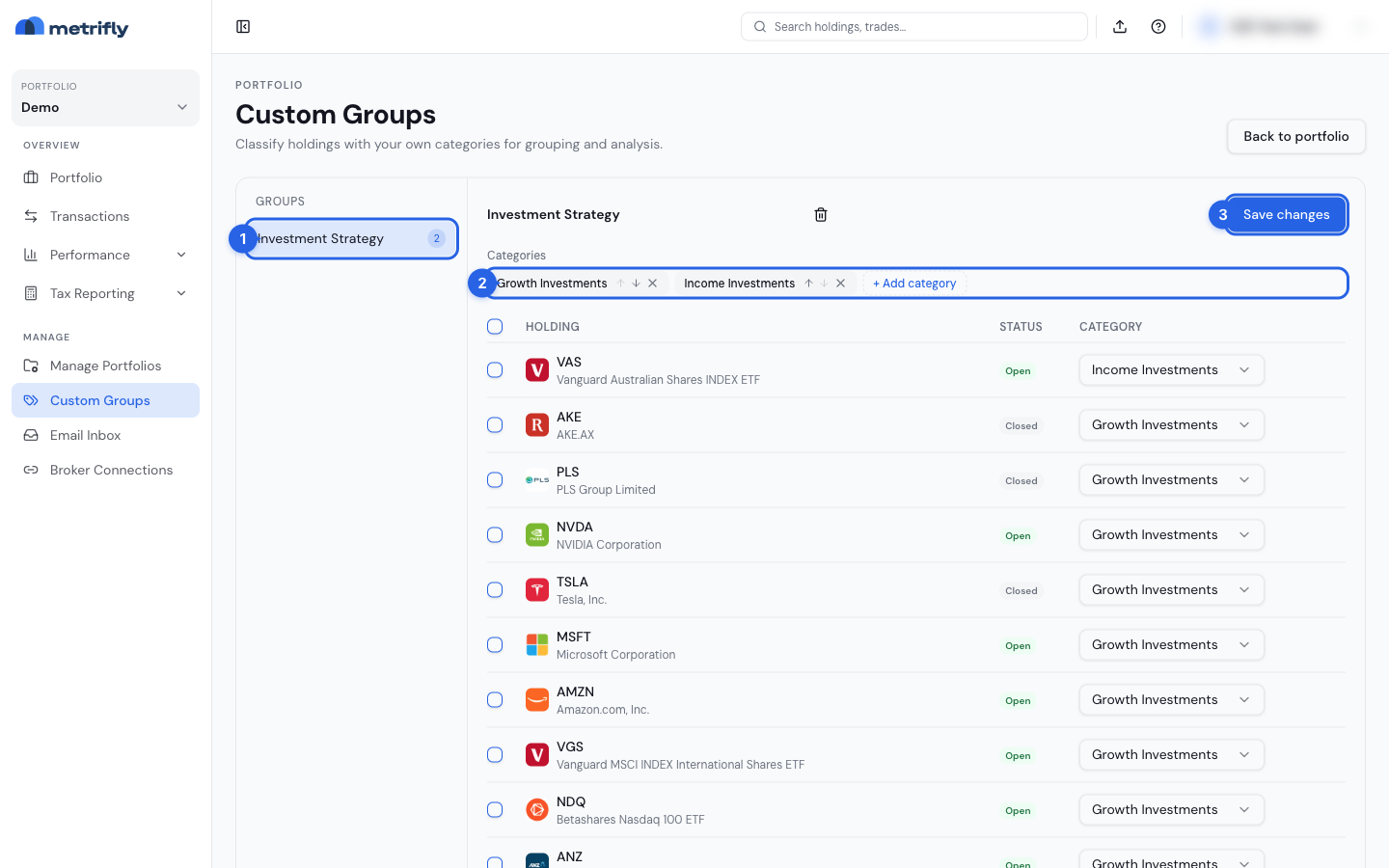
You can rename categories by selecting their name. Use the arrow controls to change their order, or delete a category you no longer need.
Assign holdings
Section titled “Assign holdings”For each holding, choose a category from the Category column. To assign several holdings at once:
- Tick the holdings you want to change.
- Choose a category from Assign to….
- Select Save changes.
Choose Unassigned when a holding should not appear in a category. Assignments are saved only after you select Save changes.
Use your group in analysis
Section titled “Use your group in analysis”After you assign holdings, you can use the custom group in several places:
- Portfolio → Group by in the holdings table groups rows and subtotals by its categories.
- Performance → Diversification → Group by shows allocation by its categories.
- Transactions → Filters → Custom Group filters transactions for holdings currently assigned to a category.
Custom-group grouping and filtering are available for one portfolio only, not an aggregated portfolio group.
Rename or delete a group
Section titled “Rename or delete a group”Select the group name to rename it. Use the delete button beside the name to remove it.
Deleting a custom group removes its categories and category assignments, but does not delete holdings or transactions.
Troubleshooting
Section titled “Troubleshooting”| Problem | Fix |
|---|---|
| Custom Groups is unavailable | Select a single portfolio instead of a portfolio group. |
| You cannot save assignments | Make a category change or assignment first, then select Save changes. |
| A group is disabled | Your current plan has fewer groups than the portfolio contains. Upgrade or delete groups until you are within the limit. |
| A holding does not appear in a category | Check its assignment and select Save changes. |