

Auto-import trades from your broker's emails
If your broker emails you a contract note every time you trade, you can have Metrifly add those trades for you — no exporting, no typing. You forward the broker’s confirmation email to a unique address for your portfolio, and Metrifly reads the trade from the attached contract note. Set up an automatic forwarding rule once, and new trades flow in by themselves.
Before you start
Section titled “Before you start”- Each portfolio has its own forwarding address, and trades only go into that portfolio. Decide which portfolio these trades belong to.
- Forward the original email with the contract-note PDF still attached — Metrifly reads the PDF, so screenshots or pasted-in text won’t work.
Step 1 — Find your portfolio’s forwarding address
Section titled “Step 1 — Find your portfolio’s forwarding address”- Open Manage Portfolios from the Manage section of the sidebar.
- On the portfolio’s card, click Settings.
- Select the Email Import tab.
- Click the copy button next to the forwarding address to copy it.
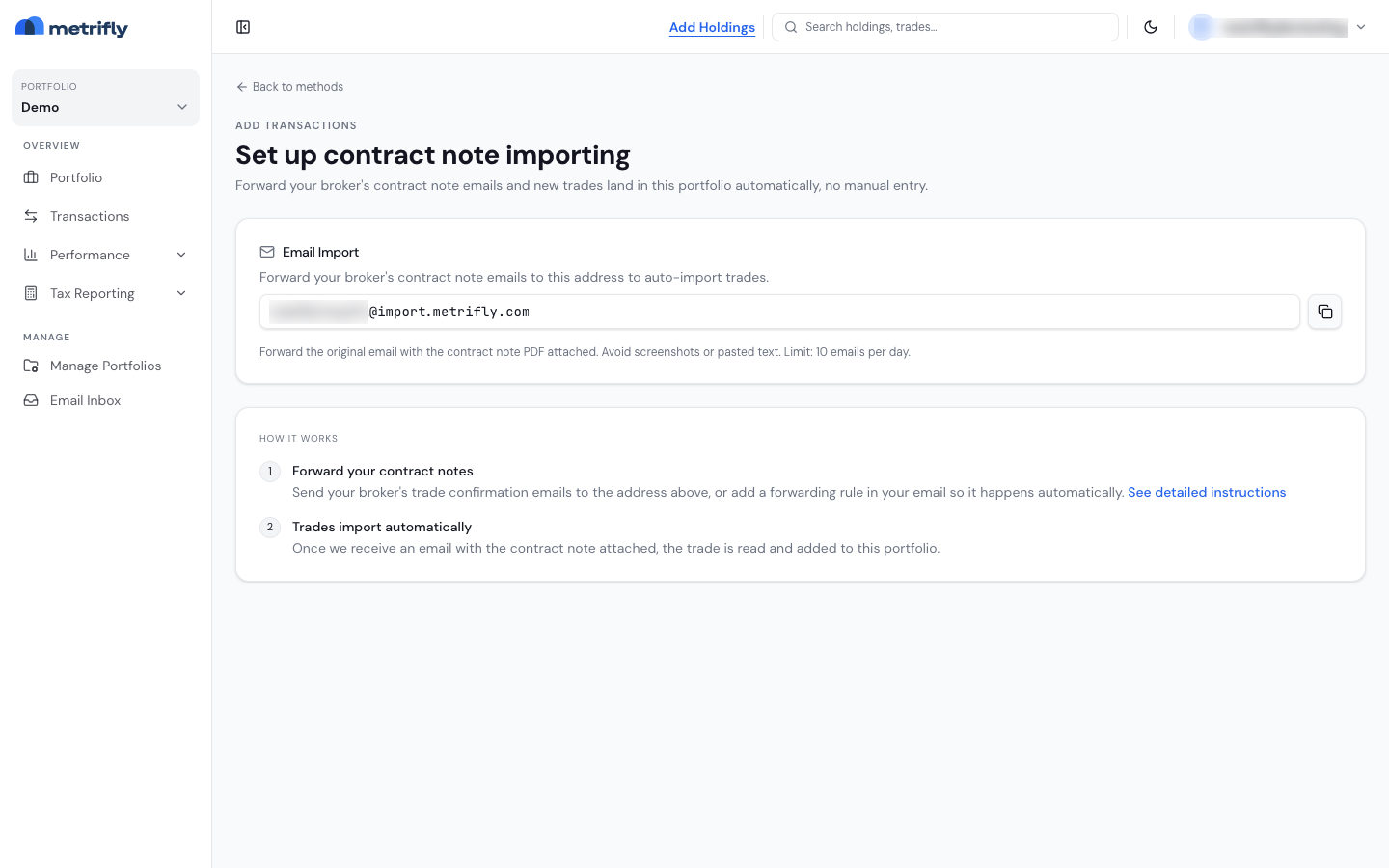
Step 2 — Forward a contract note
Section titled “Step 2 — Forward a contract note”To add a single trade right away:
- Open the contract-note email from your broker.
- Choose Forward (not reply).
- Send it to your portfolio’s forwarding address, with the PDF still attached.
Metrifly processes the email and adds the trade to that portfolio.
Step 3 — Set up automatic forwarding (recommended)
Section titled “Step 3 — Set up automatic forwarding (recommended)”Most brokers send confirmations from the same address every time, so it’s worth adding a rule that forwards them to Metrifly automatically. Copy your forwarding address first, then follow the steps for your email provider.
Make sure your rule forwards the original message with its attachment. Rules that re-attach the message or strip attachments won’t work, because Metrifly needs the original PDF.
- Open Settings (gear icon) → See all settings → Filters and Blocked Addresses.
- Click Create a new filter.
- In From, enter your broker’s confirmation sender (for example
confirmations@yourbroker.com), then click Create filter. - Tick Forward it to and choose your Metrifly portfolio address. If it isn’t listed yet, add and verify it under Settings → Forwarding and POP/IMAP → Add a forwarding address first.
- Click Create filter.
Outlook / Outlook.com
Section titled “Outlook / Outlook.com”- Open Settings (gear icon) → Mail → Rules.
- Click Add new rule and name it, e.g. “Forward contract notes”.
- Under Add a condition, choose From and enter your broker’s confirmation sender.
- Under Add an action, choose Forward to and enter your Metrifly portfolio address.
- Save the rule.
In the classic Outlook desktop app, use File → Manage Rules & Alerts → New Rule → Apply rule on messages I receive, set the from condition, then the forward it to people or public group action.
iCloud Mail
Section titled “iCloud Mail”- Sign in at iCloud.com and open Mail.
- Click the gear icon → Rules → Add a Rule.
- Set If a message is from to your broker’s confirmation sender.
- Set the action to Forward to and enter your Metrifly portfolio address.
- Click Done.
New contract notes from that sender now forward to Metrifly automatically.
Troubleshooting
Section titled “Troubleshooting”| Problem | Fix |
|---|---|
| You see a locked “Starter+” card | Email import is a paid feature. Upgrade your plan to switch it on. |
| A forwarded trade didn’t appear | Forward the original email with the PDF attached — screenshots and pasted text can’t be read. Check you haven’t passed the 10-emails-per-day limit. |
| Forwarding suddenly stopped working | Copy the current address from the Email Import tab and check your rule still points to it. Also check your email provider hasn’t paused or disabled the rule. |
| A trade went into the wrong portfolio | Each portfolio has its own address. Forward to the intended portfolio’s address. |